Uninstall Mac apps completely, with their leftover data
An app's size in Finder is only part of it. The rest lives in your Library: caches, containers, application support and preferences.
Last updated September 27, 2026
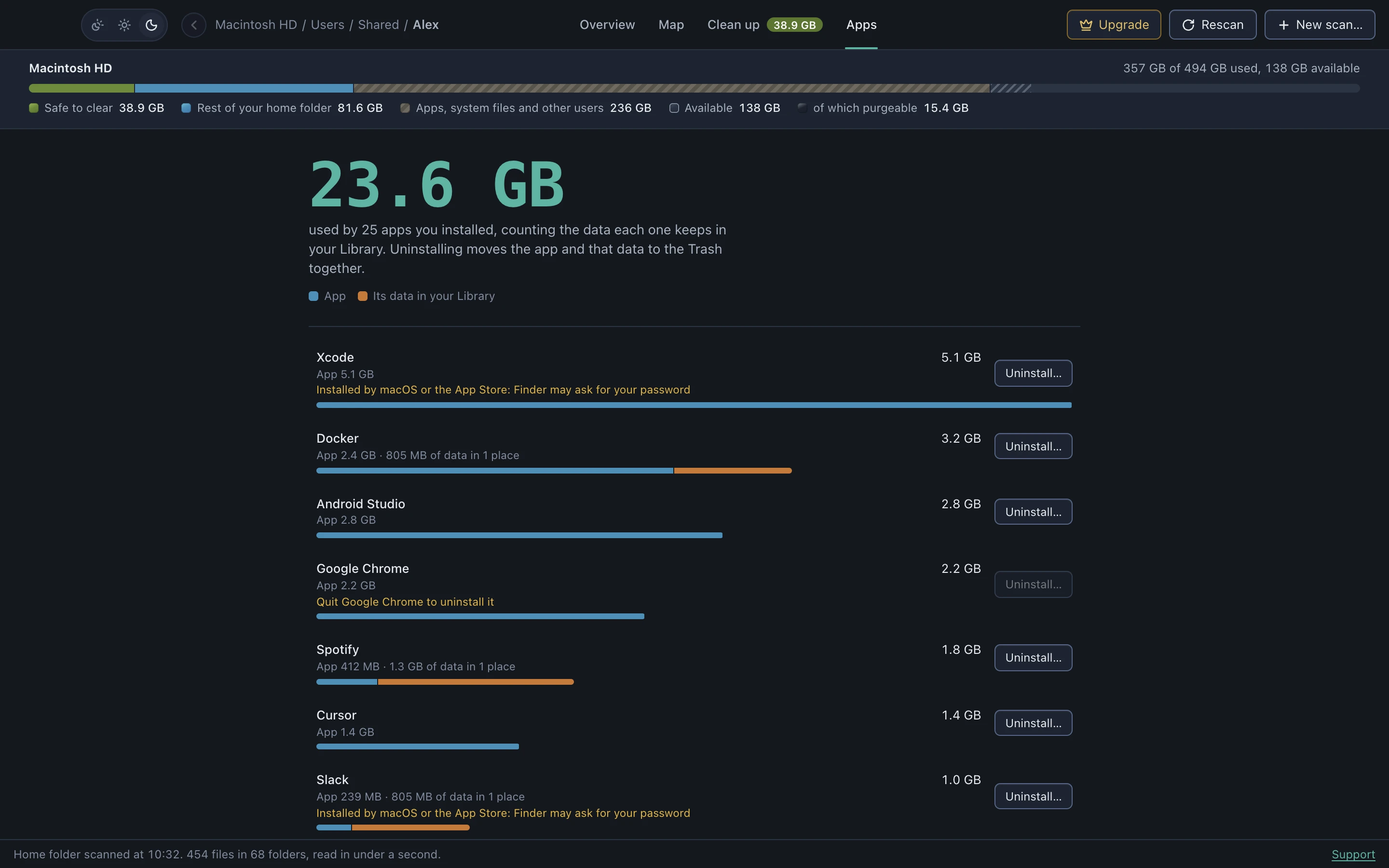
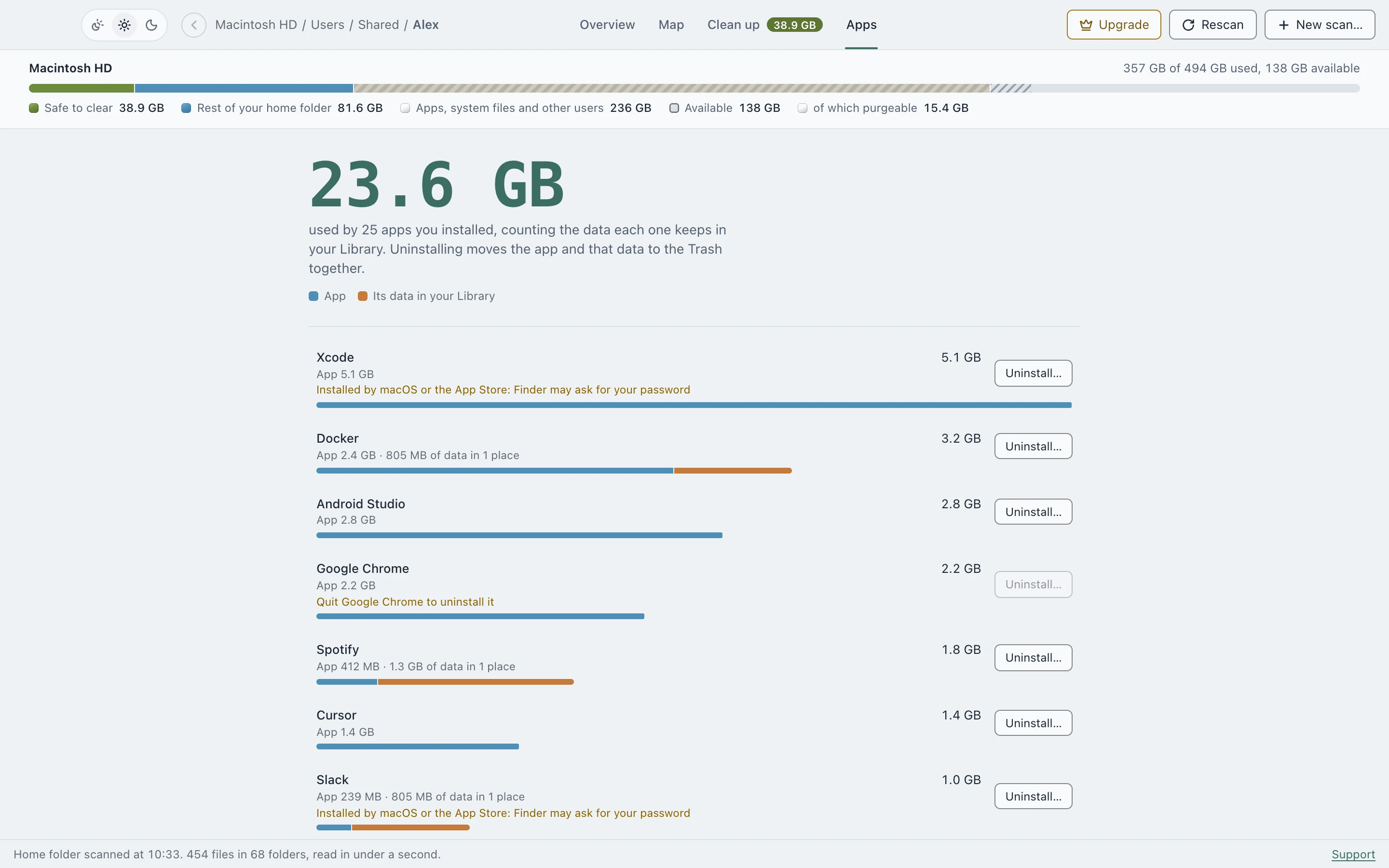
Each app’s real size
The Apps tab lists what you installed, each with one bar split into the app itself and the data it keeps in your Library. The biggest surprises are usually small apps with a lot of data.
Uninstall both together
Uninstall moves the app and the Library data filed under its bundle ID to the Trash in one step. Data is matched by bundle ID, not by a similar-looking name, so another app’s files aren’t caught by accident. If the app is running, DiskApp asks you to quit it first. Apps installed by macOS or the App Store may still need a drag to the Trash in Finder, which asks for your password.
Apps you already deleted
Apps you removed by dragging them to the Trash often leave data behind. DiskApp finds those leftovers by bundle ID too, so you can clear them.
Seeing every app’s size is free. Uninstalling and clearing leftovers are part of DiskApp Pro, a one-time purchase.
See where your space went
Scanning is free, with no account. DiskApp shows every folder by what it really holds and flags only what a rule can prove is safe to clear.
Download for MacApple Silicon, macOS 13 or later. The first open needs one approval in System Settings, shown here.